
- Training
- Service
- Promotion
- Schedule
- Testing Center
- News
- Contact
3/18/2020


A primary key is a field or set of fields with values that are unique throughout a table. Values of the key can be used to refer to entire records, because each record has a different value for the key. Each table can only have one primary key. Access can automatically create a primary key field for you when you create a table, or you can specify the fields that you want to use as the primary key. This article explains how and why to use primary keys.
To set a table’s primary key, open the table in Design view. Select the field (or fields) that you want to use, and then on the ribbon, click Primary Key.
Overview of primary keys in Access
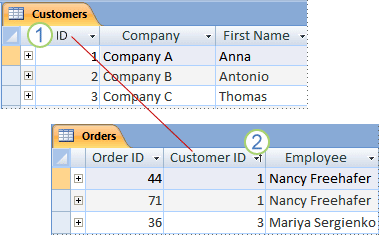
Access uses primary key fields to quickly associate data from multiple tables and combine that data in a meaningful way. You can include the primary key fields in other tables to refer back to the table that is the source of the primary key. In those other tables, the fields are called foreign keys. For example, a Customer ID field in the Customers table might also appear in the Orders table. In the Customers table, it is the primary key. In the Orders table it is called a foreign key. A foreign key, simply stated, is another table's primary key. For more information, see Database design basics.
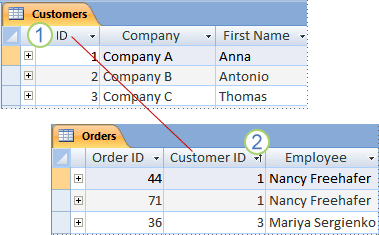
1. Primary key
2. Foreign key
If you are moving existing data into a database, you may already have a field that you can use as the primary key. Often, a unique identification number, such as an ID number or a serial number or code, serves as a primary key in a table. For example, you might have a Customers table where each customer has a unique customer ID number. The customer ID field is the primary key.
Access automatically creates an index for the primary key, which helps speed up queries and other operations. Access also ensures that every record has a value in the primary key field, and that it is always unique.
When you create a new table in Datasheet view, Access automatically creates a primary key for you and assigns it a field name of "ID" and the AutoNumber data type.
What makes a good primary key?
A good candidate for a primary key has several characteristics:
If you can’t identify a good key, create an AutoNumber field to use as the key. An AutoNumber field automatically generates a value for itself when each record is first saved. Therefore, an AutoNumber field meets all three characteristics of a good primary key. For more information on adding an AutoNumber field, see the article Add an AutoNumber field as a primary key.
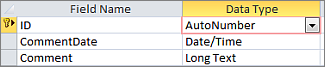
An AutoNumber field makes a good primary key.
Examples of poor primary keys
Any field that is missing one or more of the characteristics of a good candidate key is a poor choice for a primary key. Here are a few examples of fields that would make poor primary keys for a Contacts table, along with reasons why they would be poor choices.
|
Poor primary key |
Reason |
|
Personal name |
Might not be reliably unique, and may change |
|
Phone number |
Likely to change. |
|
E-mail address |
Likely to change. |
|
Zip code |
More than one person may share a ZIP code |
|
Combinations of facts and numbers |
The fact portion might change, creating a maintenance burden. Could lead to confusion if the fact portion is repeated as a separate field. For example, combining the city and an incremented number (e.g., NEWYORK0579) would be a poor choice if the city is also stored as a field. |
|
Social Security Numbers |
|
Composite keys: using multiple fields in combination as a primary key
In some cases, you want to use two or more fields in a table as the primary key. For example, an Order Details table that stores line items for orders might use two fields in its primary key: Order ID and Product ID. A key that has more than one field is called a composite key.
Add a primary key to a table
Create a primary key to associate data between multiple tables.
To select one field, click the row selector for the field you want.
To select more than one field to create a composite key, hold down CTRL and then click the row selector for each field.

A key indicator is added to the left of the field or fields that you specify as the primary key.
Remove a primary key in Access
When you remove the primary key, the field or fields that previously served as primary key will no longer provide the primary means of identifying a record.
Removing the primary key doesn’t delete the fields from your table, but it does remove the index that was created for the primary key.
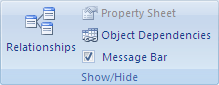

Tip: If you don't see the Navigation Pane, press F11 to display it.
If the primary key consists of a single field, click the row selector for that field.
If the primary key consists of multiple fields, click the row selector for any field in the primary key.
The key indicator is removed from the field or fields that you previously specified as the primary key.
Note: When you save a new table without setting a primary key, Access prompts you to create one. If you choose Yes, Access creates an ID field that uses the AutoNumber data type to provide a unique value for each record. If your table already includes an AutoNumber field, Access uses that field as the primary key.
Change the primary key in Access
If you decide to change a table's primary key, you can do so by following these steps:

12/11/2025


